

SaaS UX · Pathway
From sitemap to a tested screen.
Follow one small product, Pocket Invoice, through every UX step. Each step has a real file you can open, edit and check.
01 / See the outcome
Pocket Invoice: one job, every state
The job: A freelancer sends their first invoice to a client. For: Freelancers who have never used the app, on a phone or a computer, including people who use only a keyboard.
Pocket Invoice is invented for practice. The same flow is drawn in an editable Penpot file and built as a working page, so you can compare the design and the result screen by screen.
- Use the working example: every screen and error state, with a keyboard or a mouse.
- Download the Penpot file (.penpot, about 0.5 MB): four pages, from sitemap to high fidelity.
- Download the design tokens (JSON, 54 tokens, Penpot’s token format).
- Read the Penpot import check (JSON): what was checked in Penpot, and what was not.
- Read the accessibility and responsive QA report (Markdown): every state of the working page, from the site’s browser tests.
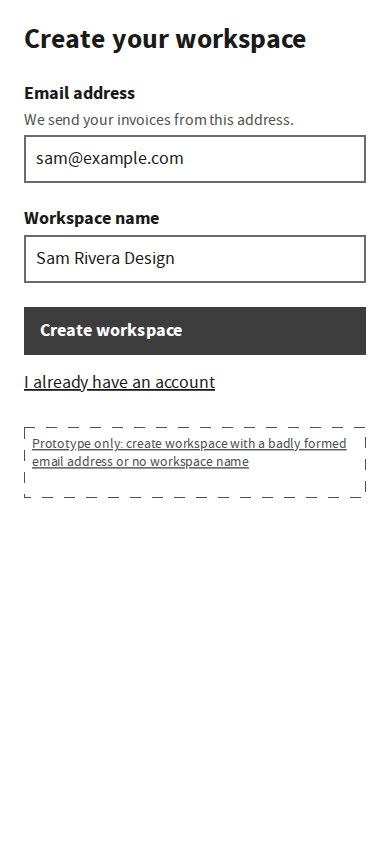
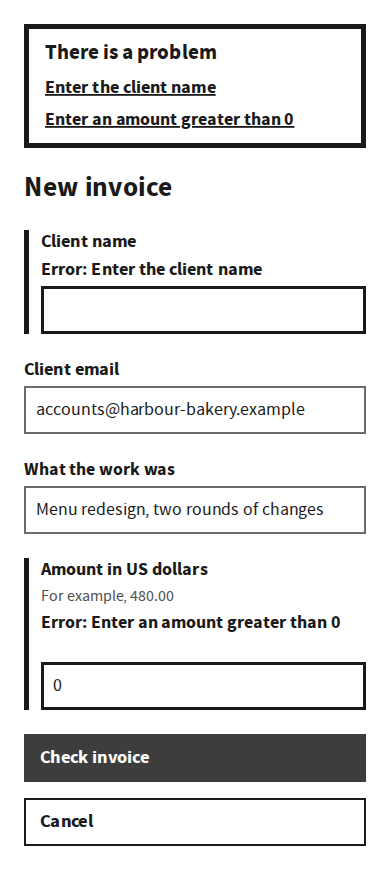
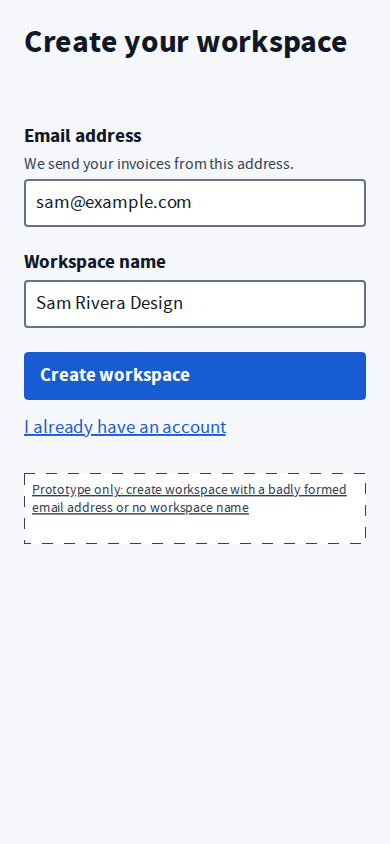
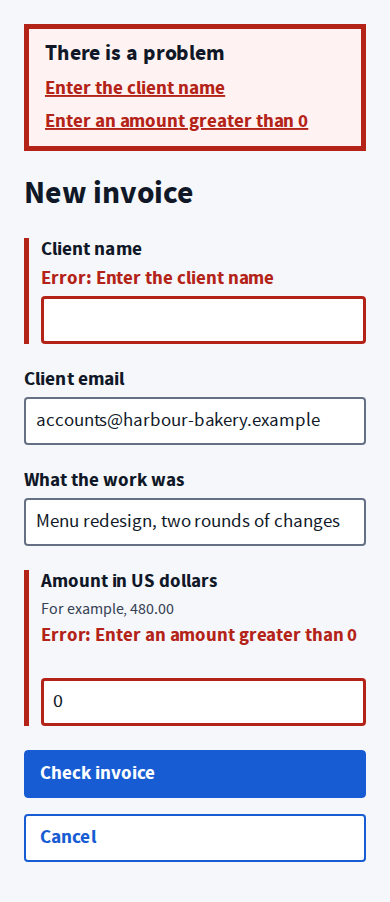
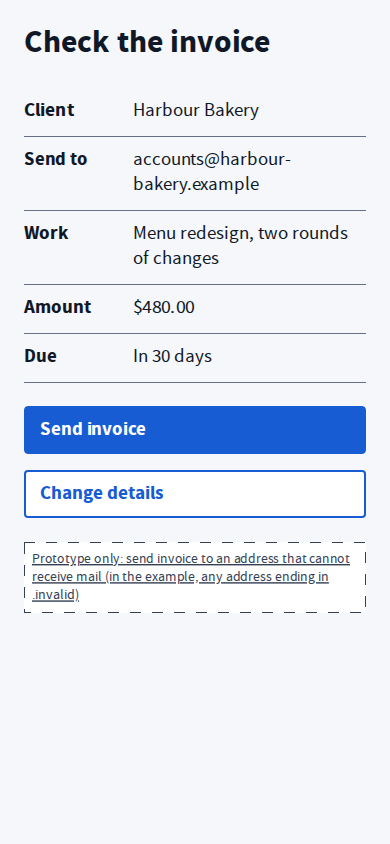
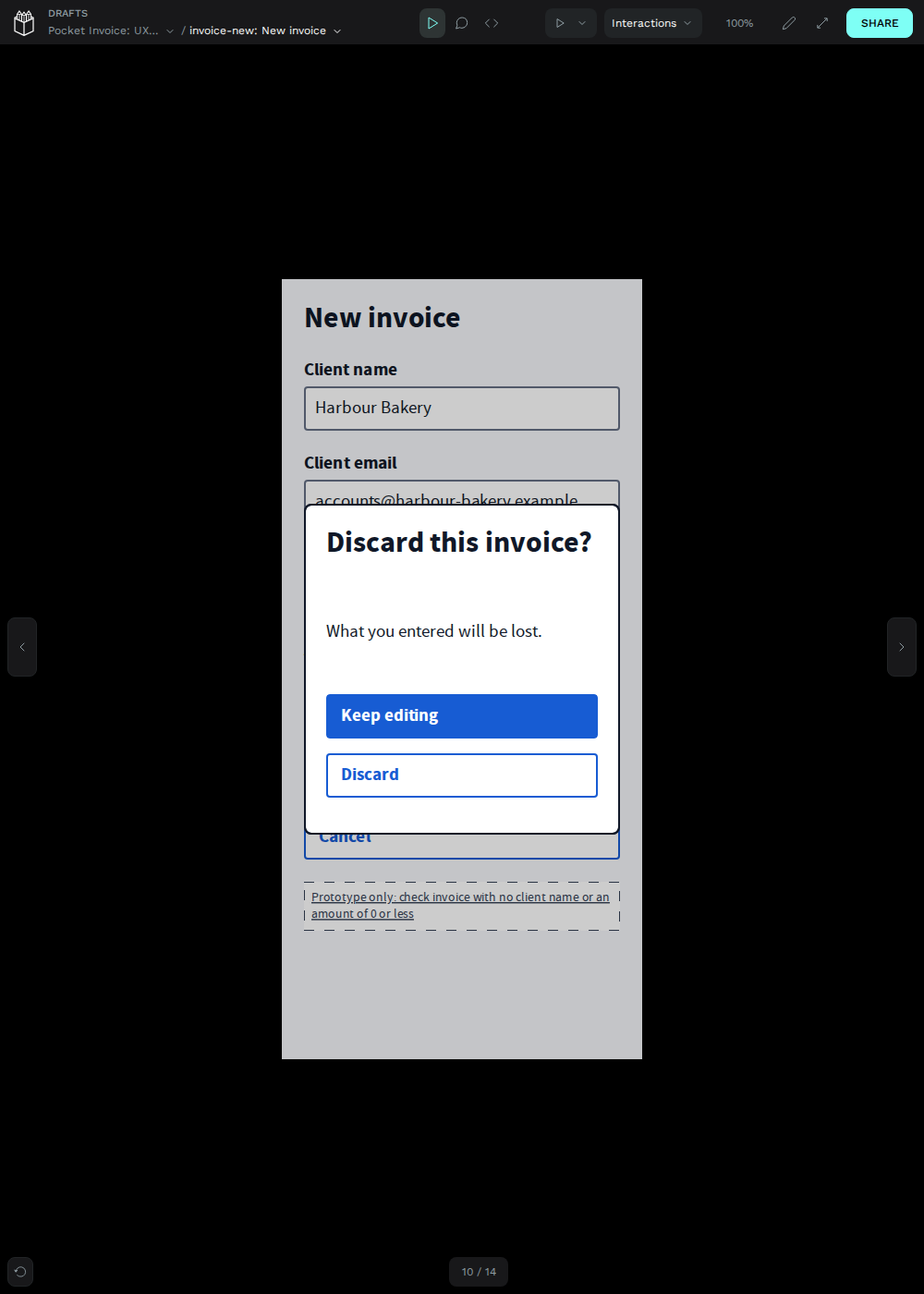
Screenshots from Penpot View mode, taken by the import check after the file was imported into a self-hosted Penpot 2.18.7.
02 / The sitemap
11 states, 19 ways between them
Every state is reachable from Create your workspace, and every error has a way back. Page 01 of the Penpot file draws this map; the lists below are the same flow as text.
Create a workspace
- Create your workspace (Screen): The first screen: the fewest fields needed before the user can do real work.
- Create your workspace: fix two problems (Error): Shows every problem at once, names how to fix each, and keeps what the user typed.
Sign in (out of scope)
- Sign in (Outside this flow): A branch the example does not build. It says so and offers the way back, so the user is never stranded.
Invoices
- Invoices: none yet (Empty state): The empty state explains what the screen is for and offers the one next step.
- Invoices: one sent (Screen): The same screen as the empty state, now with the result of the journey in it.
New invoice
- New invoice (Screen): The main task: the details a client needs to pay.
- New invoice: fix two problems (Error): Validation errors on the main task, with the summary linked to each field.
- Discard this invoice? (Dialog): A confirmation over the form, so a slip of the finger does not throw work away.
Check and send
- Check the invoice (Screen): One look at everything before it goes to the client, with a way to change any of it.
- The invoice was not sent (Error): A failure after the user pressed Send: says what happened, that nothing was sent, and what to do.
Sent
- Invoice INV-0001 sent (Success): Confirms the outcome in words, with the number to quote, and the way back to the list.
| # | From | To | Kind | What causes it |
|---|---|---|---|---|
| 1 | Create your workspace | Invoices: none yet | Forward | Create workspace with a valid email address and a workspace name |
| 2 | Create your workspace | Create your workspace: fix two problems | Error | Create workspace with a badly formed email address or no workspace name |
| 3 | Create your workspace: fix two problems | Invoices: none yet | Recover | Fix both fields and create the workspace |
| 4 | Create your workspace | Sign in | Branch | Choose I already have an account |
| 5 | Sign in | Create your workspace | Back | Back to create a workspace |
| 6 | Invoices: none yet | New invoice | Forward | Create your first invoice |
| 7 | New invoice | Check the invoice | Forward | Check invoice with every field valid |
| 8 | New invoice | New invoice: fix two problems | Error | Check invoice with no client name or an amount of 0 or less |
| 9 | New invoice: fix two problems | Check the invoice | Recover | Fix the fields and check the invoice |
| 10 | New invoice | Discard this invoice? | Open dialog | Cancel |
| 11 | New invoice: fix two problems | Discard this invoice? | Open dialog | Cancel |
| 12 | Discard this invoice? | New invoice | Close dialog | Keep editing, or press Escape |
| 13 | Discard this invoice? | Invoices: none yet | Back | Discard |
| 14 | Check the invoice | New invoice | Back | Change details: every value is kept |
| 15 | Check the invoice | Invoice INV-0001 sent | Forward | Send invoice |
| 16 | Check the invoice | The invoice was not sent | Error | Send invoice to an address that cannot receive mail (in the example, any address ending in .invalid) |
| 17 | The invoice was not sent | New invoice | Recover | Change the email address |
| 18 | Invoice INV-0001 sent | Invoices: one sent | Forward | Back to invoices |
| 19 | Invoices: one sent | New invoice | Forward | Create invoice |
03 / The steps
Six katas, in order
Each kata has a brief, prompts, the checks that prove it is done and the evidence for the checks the Dojo has run. They are drafts: the Dojo built and checked the worked example, and no learner has run them yet. Do the foundations first: Compare AI instructions and Spot a context trap.
- UX-001 Map a sitemap with branches and error states
List every state, the ways in and out, and how each error recovers.
- UX-002 Draw low-fidelity screens and wire the flow
Greyscale 390 px boards, one per state, clickable in Penpot View mode.
- UX-003 Define design tokens
Colour, type and spacing as a JSON token file, with every pair checked for contrast.
- UX-004 Build components from tokens
Buttons, fields, an error summary and a dialog, used on every high-fidelity screen.
- UX-005 Implement the screens and check accessibility
A working page from the same flow and tokens, checked with axe, a keyboard and reflow at 320 px.
- UX-R01 UX Randori: an unseen flow with a hidden constraint
Map and wire a flow you have not seen; a partner reveals one constraint after you start.
04 / The tools
Penpot, and what Figma would cost
The pathway uses Penpot because it is open source, runs in a browser, can be self-hosted, and its free plan has no file limits. Facts below are from each publisher’s own pages, checked on 20 November 2026. Plans change: check the source before you rely on one.
| Fact | Penpot | Figma |
|---|---|---|
| Free plan | Professional: $0, “Free and fully featured”, up to 8 members, 10 GB (pricing) | Starter: free, unlimited drafts, 150 AI credits a day up to 500 a month (pricing) |
| Paid plans | Unlimited: $7 per editor a month, capped at $175 a month; Enterprise: $25 per member a month (pricing) | Professional: Full seat $16, Dev $12, Collab $3 a month; Organization and Enterprise cost more (pricing) |
| File limits | “No file limits” on every plan (pricing) | Unlimited files and projects on Professional and above (pricing) |
| Self-hosting | Yes: Docker Compose, Kubernetes and other paths (technical guide, Docker) | Not offered on the pricing page |
| Licence | Mozilla Public License 2.0 (licence) | Proprietary |
| Design tokens | W3C Design Tokens Community Group draft format; importing replaces the file’s global token set (guide) | Not checked for this pathway |
| Agent write access | Plugins ask for permissions such as content:write (plugins); the MCP server writes to the open page with a personal key and no scopes (MCP) | Starter: 20 MCP tool calls a month (pricing) |
05 / What is checked
Verified, and not verified
Verified
- The .penpot file imports into a self-hosted Penpot 2.18.7 with 4 pages, 11 state boards on each wireframe page, 8 components, 16 colours, 5 typographies and all 54 tokens. (evidence)
- In Penpot View mode, a scripted browser clicked through all 19 transitions on both the low- and high-fidelity pages without an error.
- The file is generated from the same flow and tokens as the working example; the site’s tests rebuild it on every pipeline and fail if it differs from the published copy.
- Every text and control colour in the tokens meets its contrast ratio (4.5:1 for text, 3:1 for borders and focus), computed on every pipeline.
- The working example is driven through every state in the site’s browser tests, with axe checks for WCAG A and AA, reflow at 320 px, and keyboard and dialog focus. (evidence)
Not verified
- Penpot cloud (penpot.app): the file was checked on a self-hosted instance only.
- Editing by a person: the checks open and click the file; nobody has redesigned it in Penpot yet.
- Export from Penpot to SVG, PDF or PNG.
- Writing to Penpot through a plugin or the MCP server. Browser tests do not prove native write access.
- Figma: the file is Penpot-only and was not tried in Figma.
- Use by real learners or by people who use assistive technology: no usability sessions have been run.
Professional review: Not required for this invented practice product, and none was done. The automated checks are not an accessibility audit, and nothing here is a conformance statement for a real product.
06 / Credits
Credits and terms
- Pocket Invoice, its flow, tokens, Penpot file and working example: Developer Dojo, MIT licence.
- The Penpot file is written with Penpot’s official library, @penpot/library (Mozilla Public License 2.0). The file format is described in Penpot’s file format guide.
- The error summary follows the GOV.UK Design System error summary, published under the Open Government Licence v3.0. The Dojo credits the pattern; no GOV.UK text, code or font is copied.