
3D · Real-world showcase
Turn a room into a world.
Explore a real 3D office. Then work backward through the scan, agent and evidence that made it.
01 / See the outcome
Walk around a real 3D office
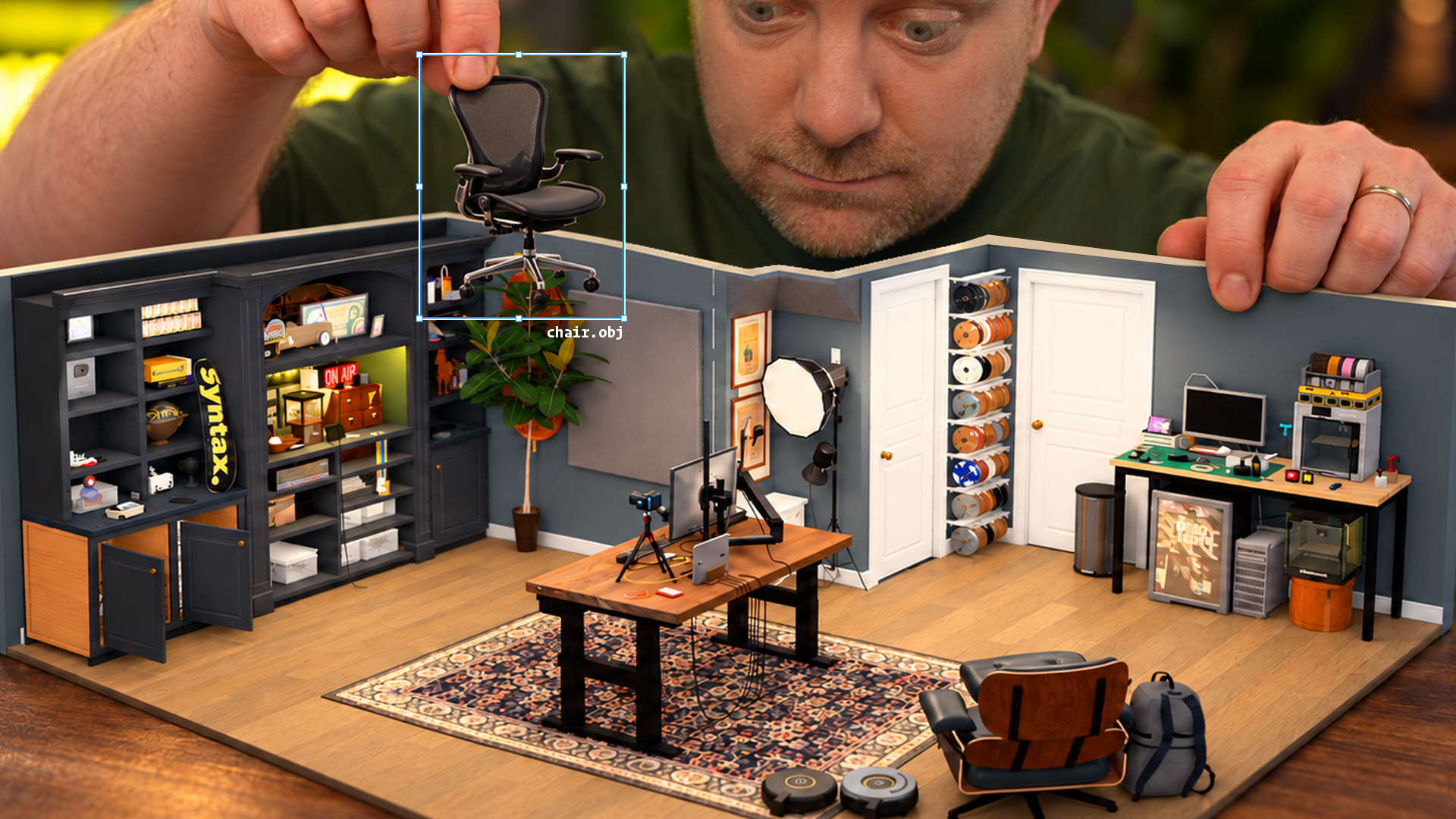
Wes Bos built an editable Three.js office from a room capture with an AI coding agent. Open his viewer and try the dollhouse, wireframe and walk-around views.
This is Wes Bos’s public example, not a Dojo-created reconstruction. The published office does not include its original scans or photos, so scan and overlay modes are unavailable for that example.
02 / Try it now
Start with the device you have
- Open the finished room. Choose two views and notice what each reveals.
- Copy the prompt below into an AI assistant on your phone or computer. Ask it to help you understand the workflow.
- Check its explanation against the creator’s repository and walkthrough. Correct anything unsupported.
The public example is enough for this first exercise. You do not need to scan your home, install a plugin or create an account to explore the viewer.
03 / Assemble the stack
What makes it work?
- Outcome
- An editable Three.js room and browser viewer—not a certified building model.
- Harness and model
- The creator describes using a coding agent; use the assistant and model available to you for the study exercise. For your own reconstruction, choose a compatible coding harness and check its file and command permissions.
- Instructions and context
- A clear reconstruction brief, capture geometry, reference photos and recorded camera positions. Do not invent missing dimensions.
- Skill and tools
- The repository includes the community-created
scan-to-threejsskill, viewer and helper scripts. Its README names Node.js 22.12+, Python 3 and additional dependencies for particular comparisons. A local skill is optional for studying the example and is not installed by this page. - Verification
- Compare rendered views against available evidence; record uncertainty and manually check measurements. The public office lacks original reference assets, so it cannot demonstrate the private scan-to-photo comparison itself.
Before running an outside repository or enabling its skill, inspect its instructions, scripts, dependencies and requested file/network access. Run it with only the permissions and data you intend to share. Account limits and model usage charges vary.
04 / Adapt and verify
Make the technique yours
Phone or browser: study the example
Use the viewer, video and prompt above. Write down one visible detail, one inference and one thing you cannot verify without the source scan. Ask your assistant to revise any unsupported claim.
Computer: inspect and run the public viewer
Read the official setup and asset terms first. With Git and a supported Node.js release installed, clone the repository, enter it, install its dependencies and start its development server. These commands download and execute third-party software; inspect the repository and lockfile before running them.
git clone https://github.com/wesbos/3d-model-anything.git
cd 3d-model-anything
npm ci
npm run dev
Follow the repository’s displayed local address. Check the room in more than one view and save an observation of what you can and cannot verify. This is the creator’s workflow; Dojo has not run it for you.
Optional: capture a room you have permission to scan
The source project describes a LiDAR-equipped iPhone or iPad for new scans and Xcode to build its app from source. Check the current app instructions and device requirements; do not assume an app-store release. Follow its repository instructions, review the skill and helpers, and keep captures private. Images and spatial data can reveal addresses, possessions or other people’s information.
Quick check
Does an attractive 3D room prove its measurements are correct?
No. Compare against the source measurements and photographs where available, document uncertainty and have the result independently reviewed for its intended use.
For BIM, a picture or mesh alone does not establish IFC objects, properties, relationships or compliance. Construction, safety and professional decisions need independent validation and any required approval.
Inspect a real BIM information model · Explore more katas · Industry workshops · Explore the project on GitHub